

TikTok Cover Downloader
Grab the cover or thumbnail image from a public TikTok video.
Download only public media you own or have permission to save.
TikTok Video Cover Downloader – Save Video Thumbnails Online
ClipToDown TikTok Video Cover Downloader helps you save cover photos and thumbnail images from supported public TikTok videos. Copy a video link, paste it into the tool above, and check the available preview image.
Use this TikTok video thumbnail downloader to save available video cover pictures on your phone or computer. The online TikTok thumbnail saver works directly in your browser without another application.
What Is a TikTok Video Cover Downloader?
A TikTok cover, also called a video thumbnail, is the preview image shown before someone opens a video. A TikTok video cover downloader helps you get supported cover photos from public video links without manually taking screenshots.
ClipToDown makes it easy to check a video link for an available cover image. You can save the preview picture in the format and resolution supplied by the original video.
Features of Our TikTok Video Thumbnail Downloader
Save TikTok Cover Pictures
Download TikTok cover images and video preview pictures from supported public links.
Simple Download Process
Paste a TikTok video URL, check the cover preview, and save the available thumbnail.
No App Required
Use the TikTok cover photo downloader in a compatible browser without installing software.
Mobile & Desktop Support
Access the tool through compatible Android, iPhone, Windows, and Mac browsers.
How to Download TikTok Video Thumbnails
Follow these four simple steps to download a TikTok video thumbnail or cover photo.
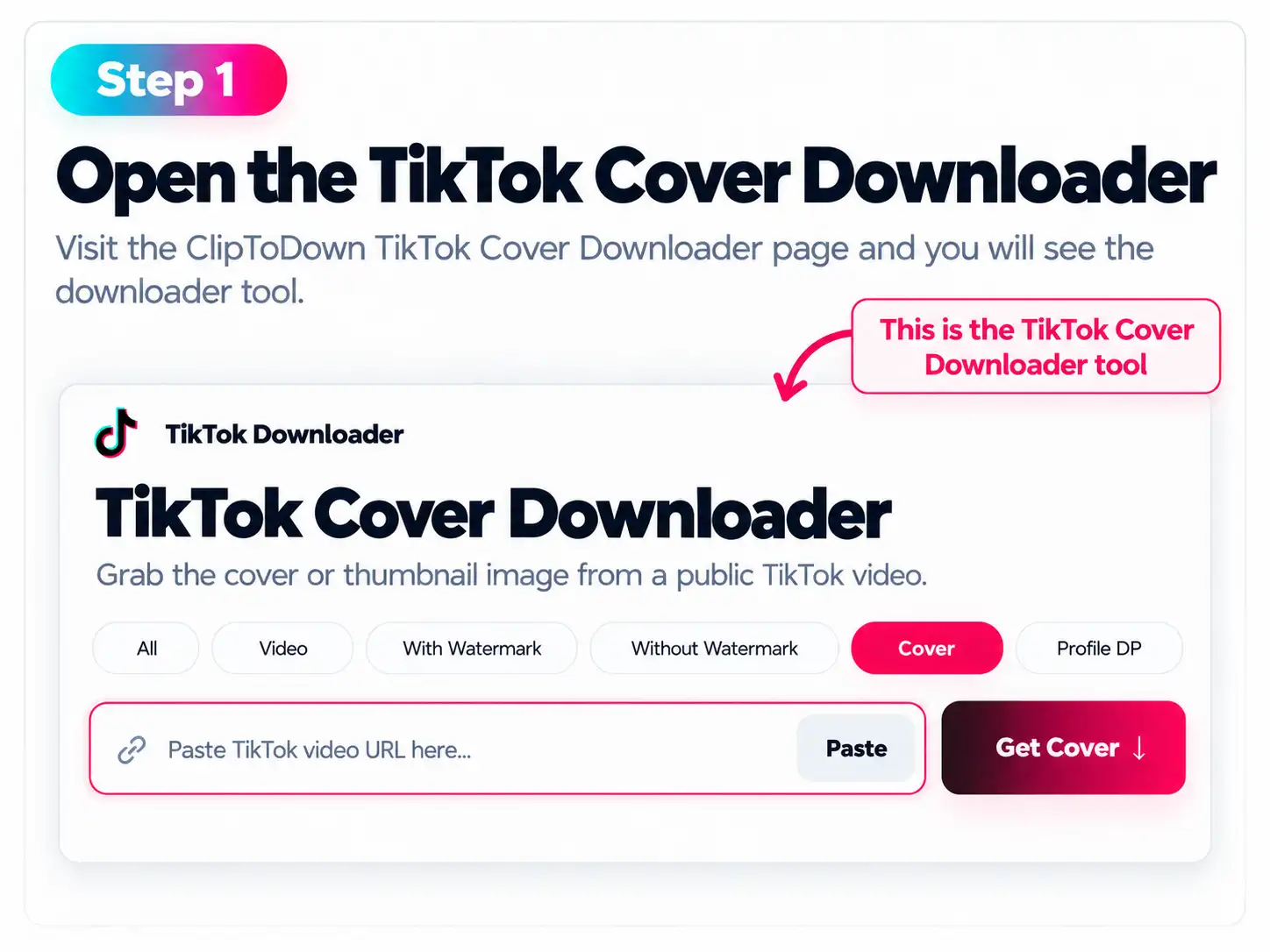
Open TikTok Cover Downloader
Open the tool above and select Cover to download a public TikTok video thumbnail.
Paste the TikTok Video Link
Copy the public TikTok video URL and paste it into the box above.
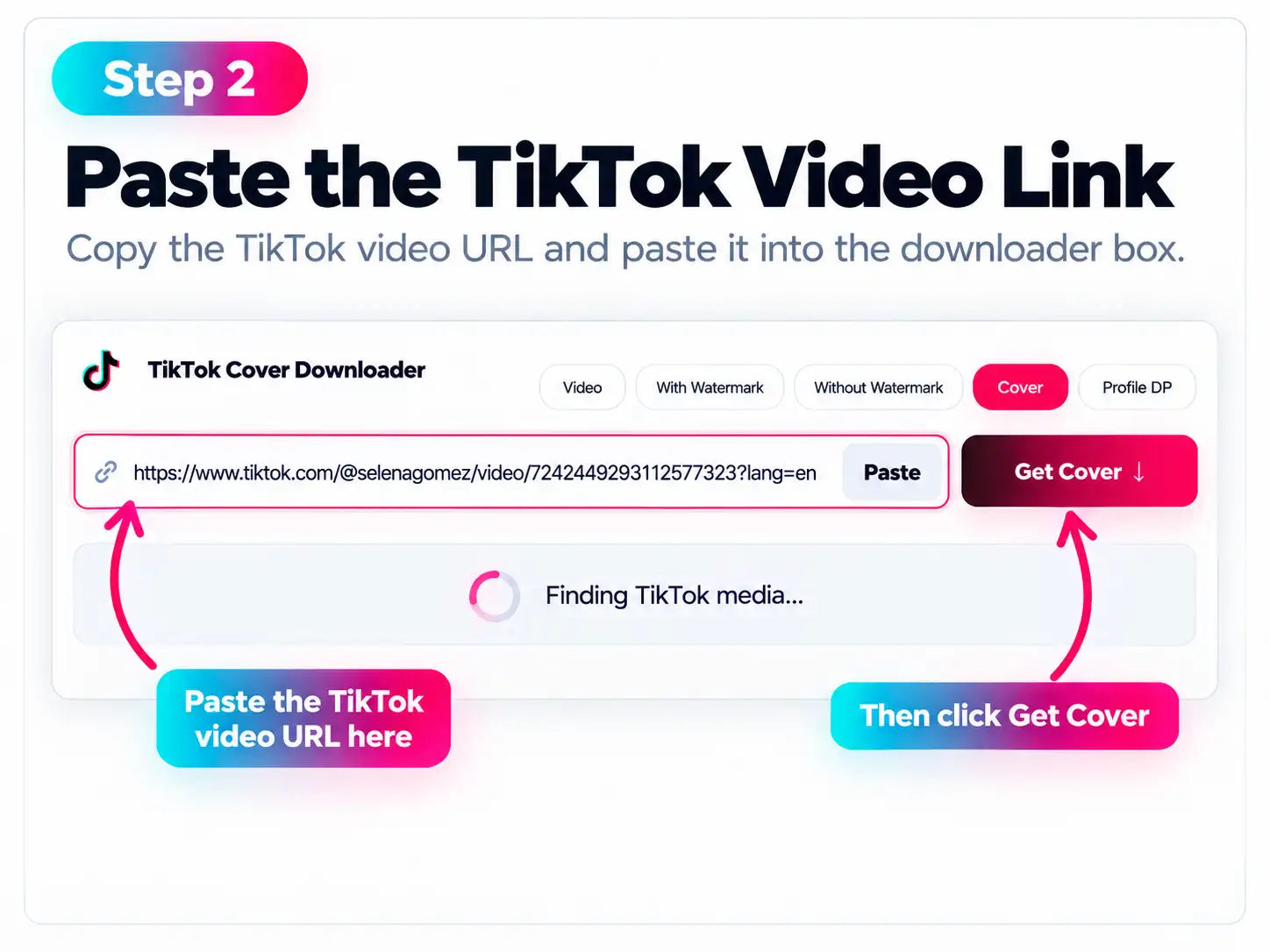
Click Get Cover
Press Get Cover to find the available TikTok cover image.
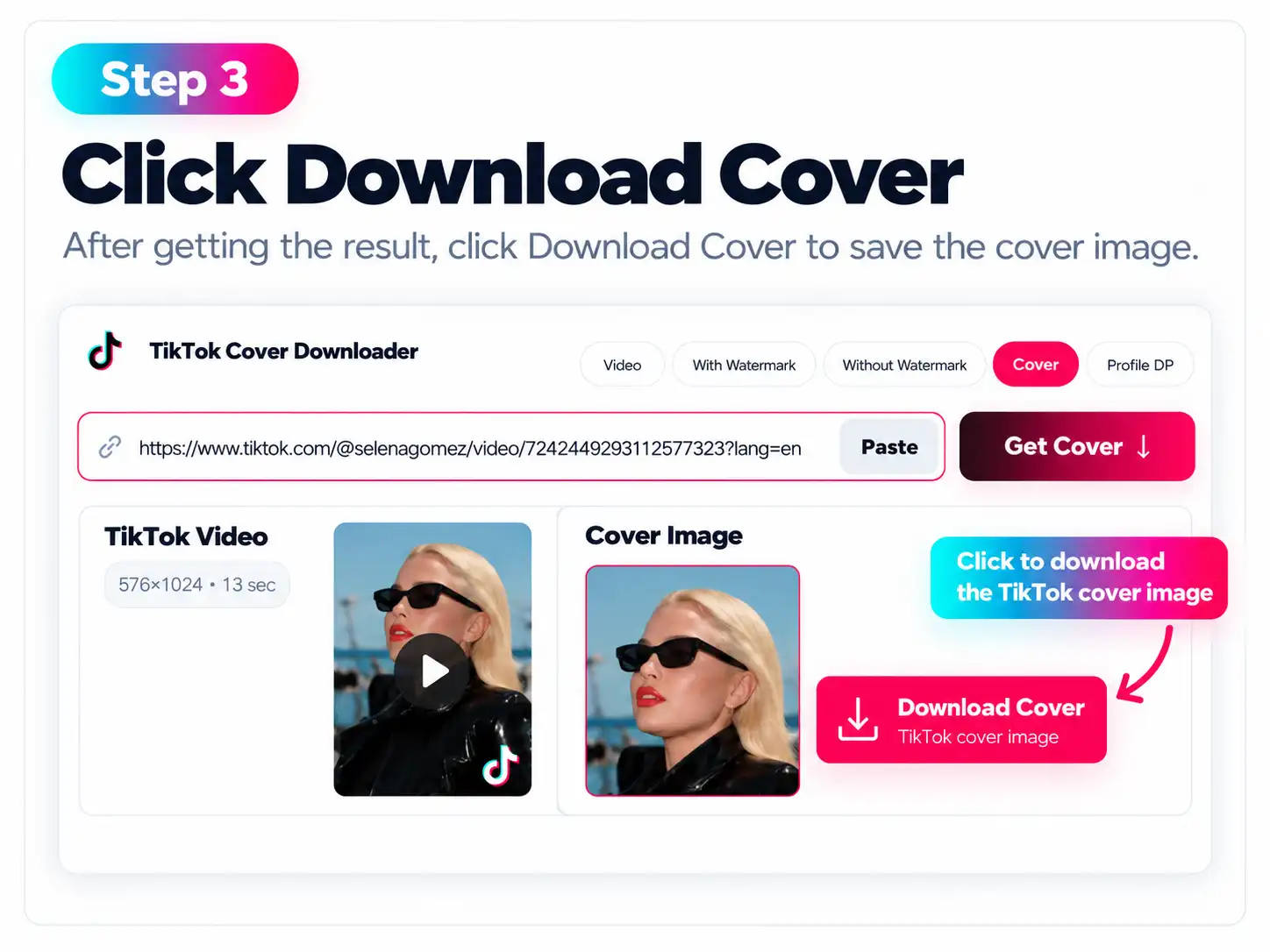
Download the Cover Image
Click Download Cover to save the thumbnail to your device.
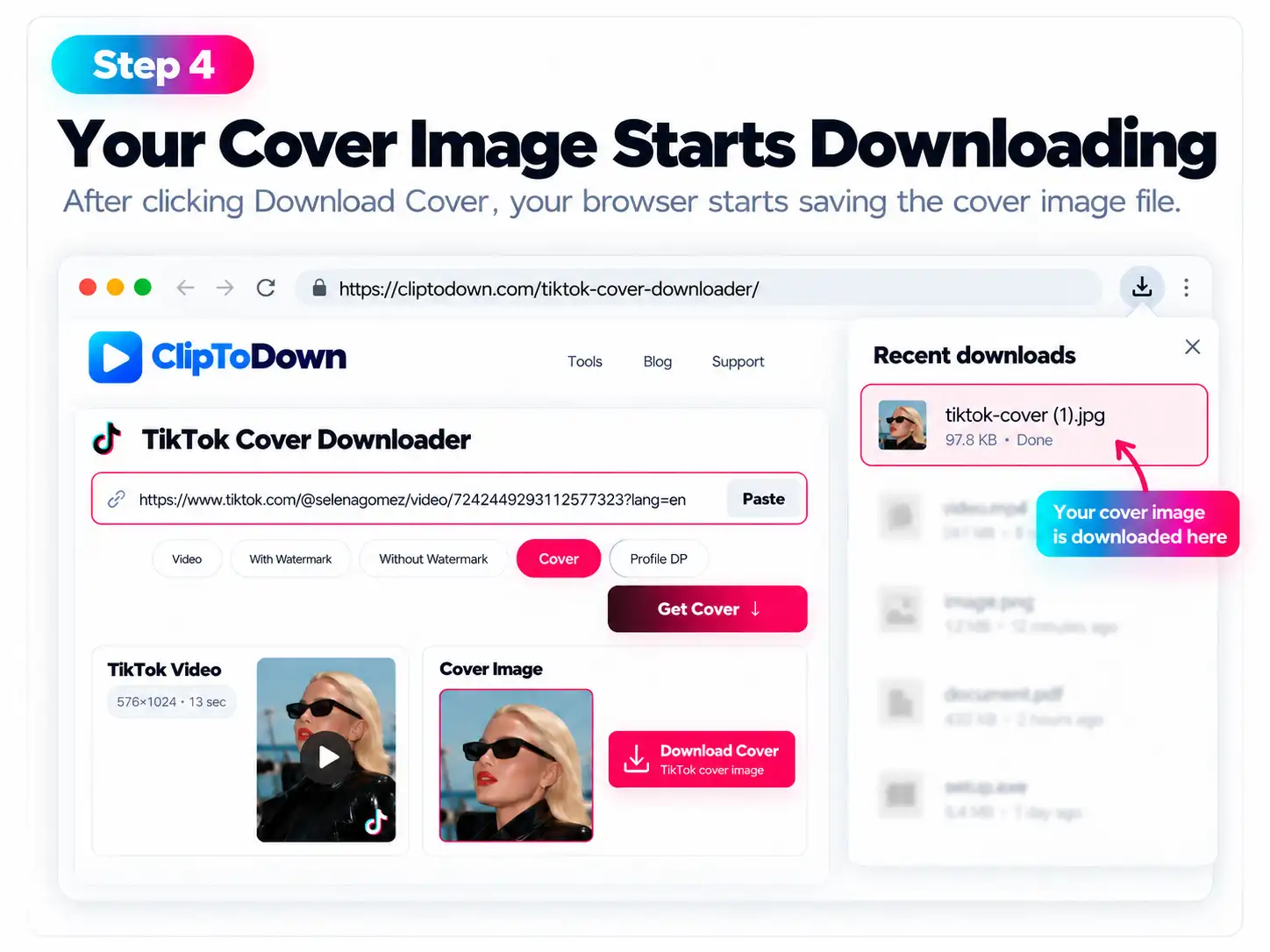
Save TikTok Video Covers on Any Device
Our online TikTok thumbnail downloader works on phones, tablets, and computers through compatible browsers. You can download supported TikTok cover photos without a login. Image resolution and format depend on the original video thumbnail.
FAQs About TikTok Video Cover Downloads
Find answers to common questions about downloading TikTok video thumbnails and cover photos online.
What is a TikTok cover image?
A TikTok cover is the preview picture used to represent a video. It helps viewers identify the video before playing it.
Is TikTok Cover Downloader free?
Yes. ClipToDown provides free access to its basic TikTok cover downloading tool.
How can I download a TikTok video thumbnail?
To download a TikTok video thumbnail, paste a public video link into the downloader above, choose Cover, click Get Cover, then select Download Cover.
Can I save TikTok cover photos in HD?
Higher-quality thumbnail images may be available depending on the original image resolution and the supported source format.
Can I save TikTok thumbnails on my iPhone?
Yes. You can use ClipToDown through a compatible iPhone browser and save available images to your device.
Does TikTok Video Thumbnail Downloader work on Android?
Yes. The tool works in compatible Android browsers without requiring another application.
Do I need a TikTok account to download covers?
No TikTok login is required to use ClipToDown for supported public video links.
Why is my TikTok thumbnail not downloading?
The video may be private, deleted, restricted, or unsupported. Check that the video link is correct and publicly accessible.